

Accessing Import/Export Options
- Go to the Environments section (top right corner).
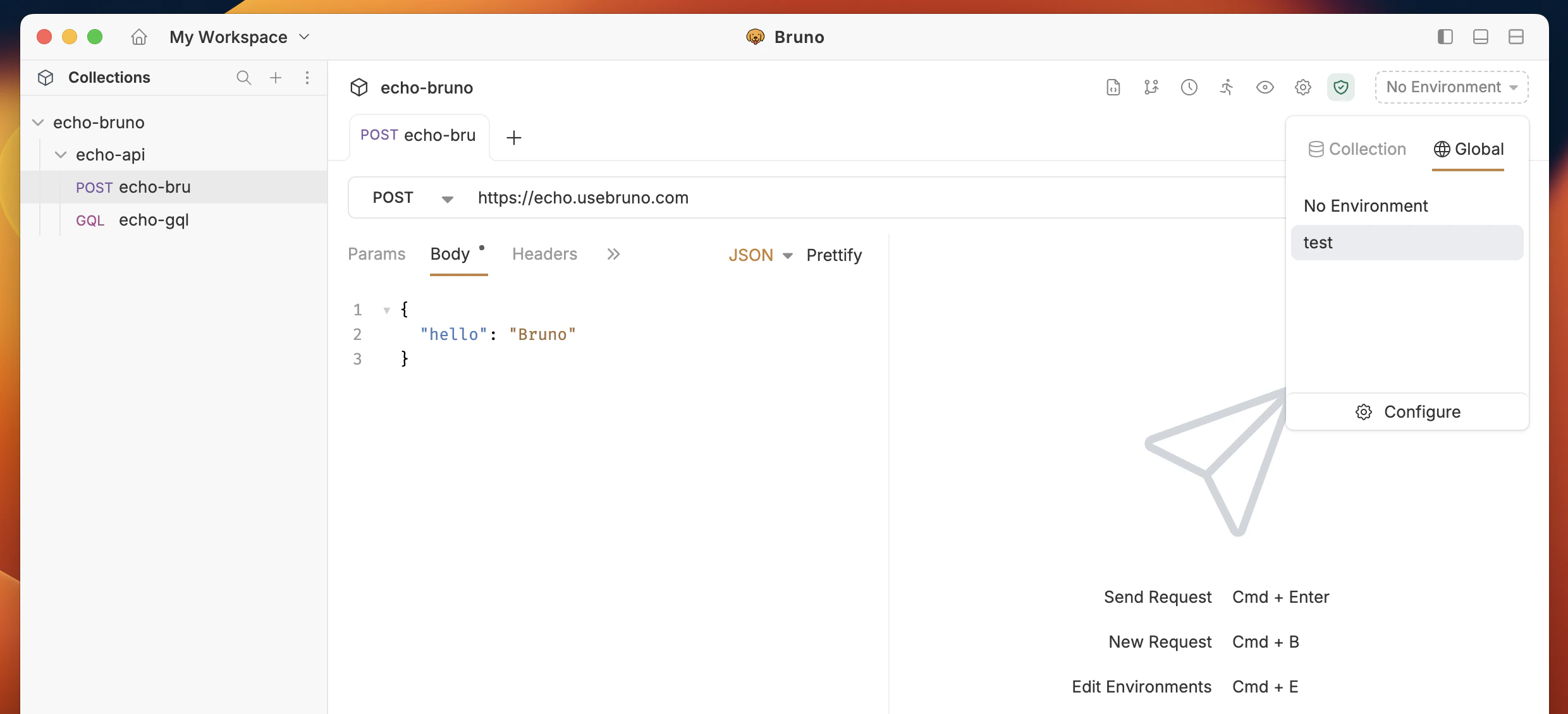
- Click on Configure to access the environment settings.
- You will see the Import and Export options in the left sidebar.
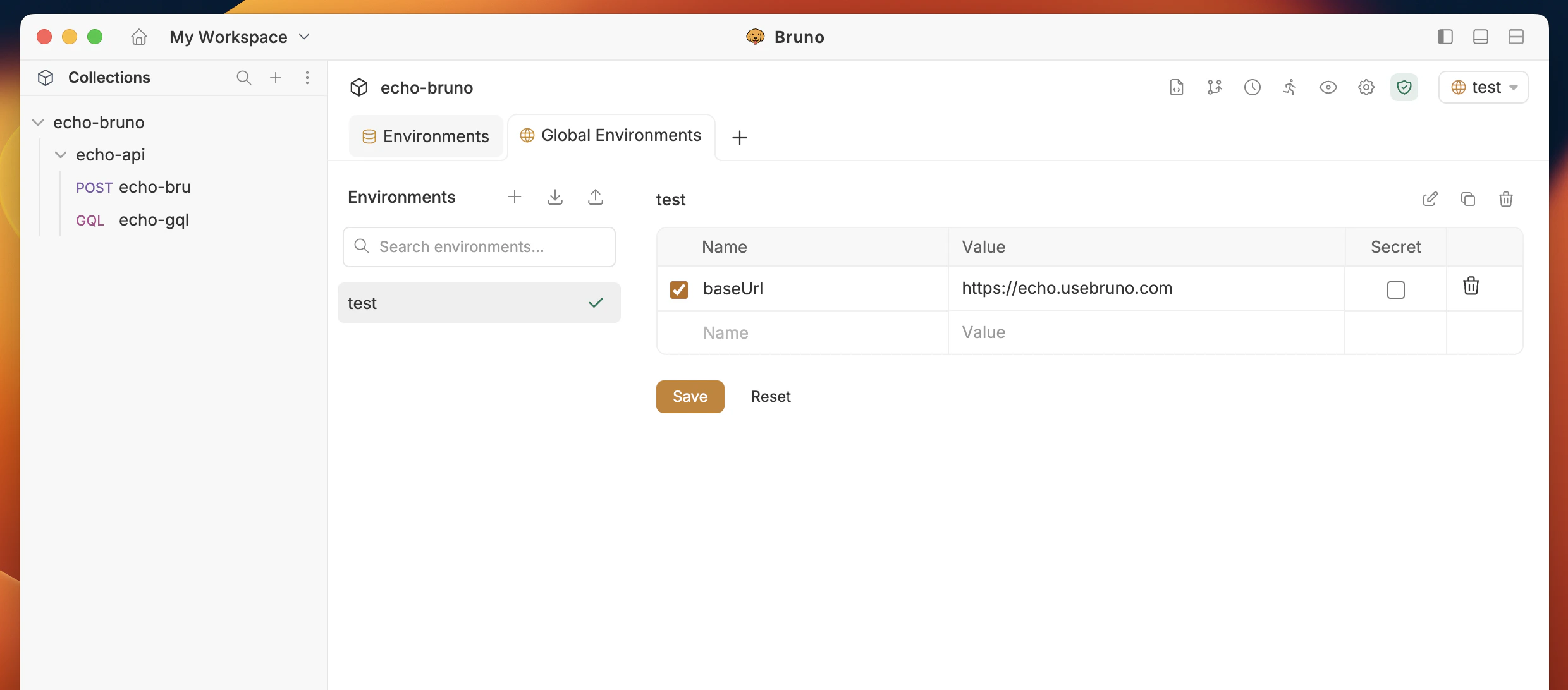
Importing Environment Variables
The import feature accepts environment files in both Bruno and Postman formats.Steps to Import
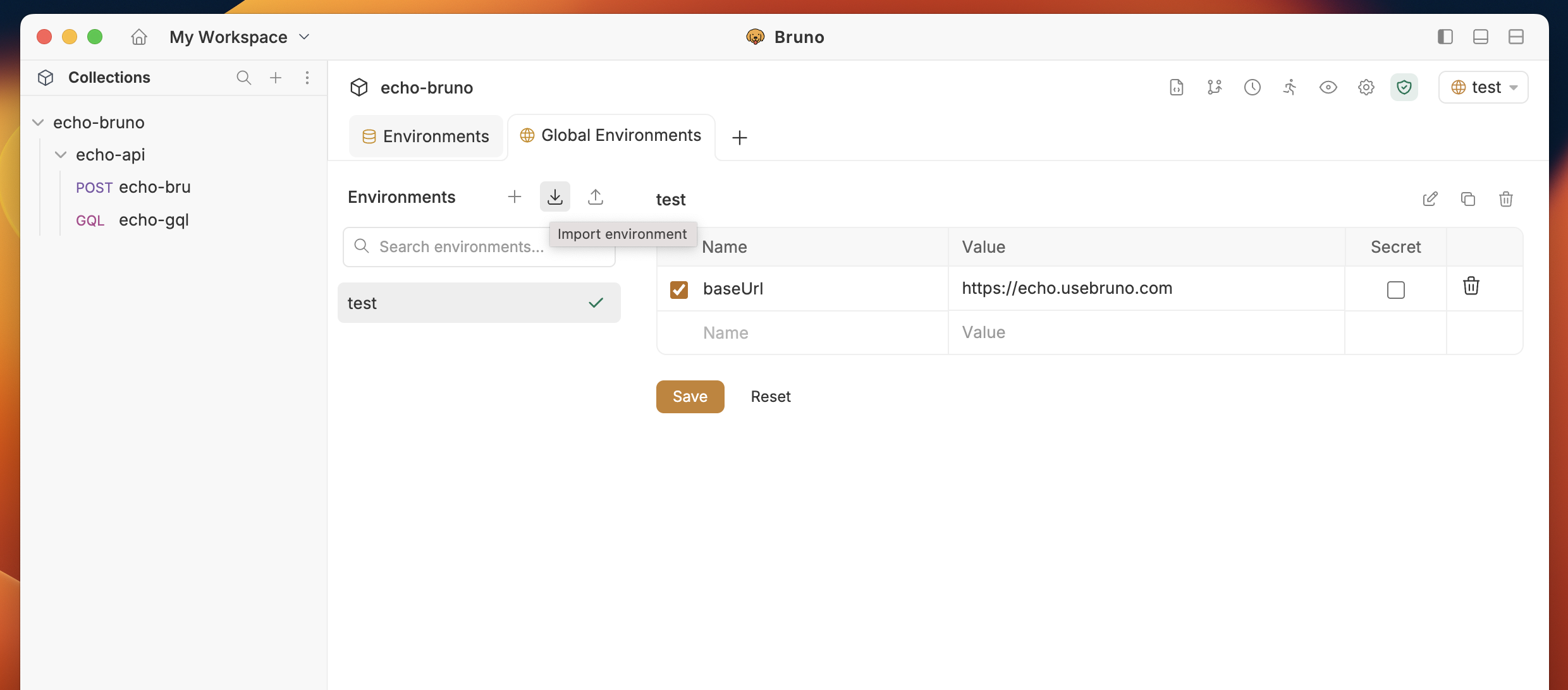
- Click on the Import button in the environment configuration screen.
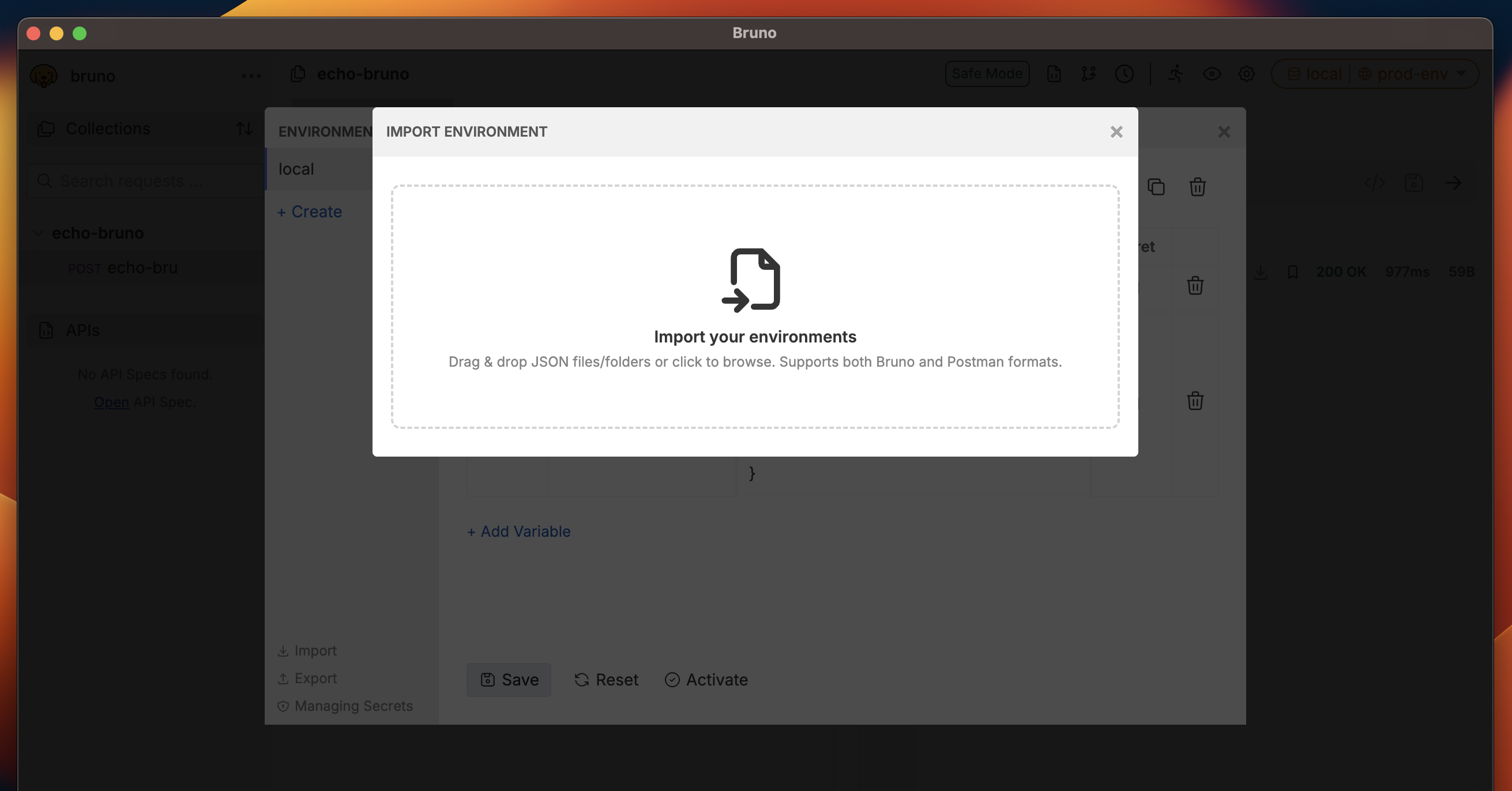
- Select the environment file you want to import.
- The variables will be added to your environment (global or collection, depending on which you’re configuring).
Duplicate environment names
If an imported environment uses a name that already exists in the collection, a prompt dialog lists the conflicts so you can choose what happens.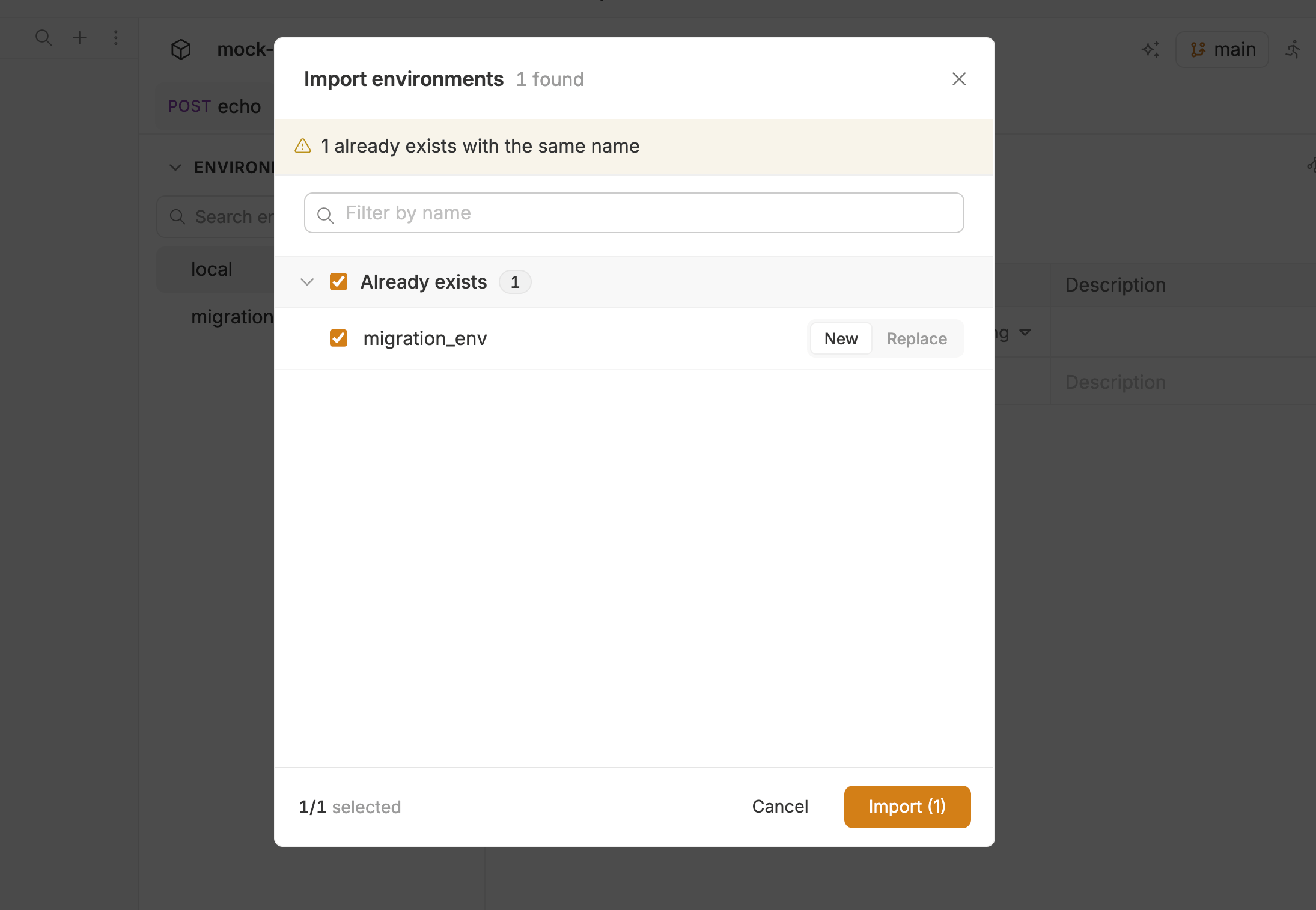
When several files conflict in one import, use Apply to all so one choice covers every remaining conflict.
- Cancel or the dialog close control cancels the whole import. Conflicting files are not applied.
A Postman data dump can contain several environments with the same name. Bruno resolves those names internally and imports the dump without treating them as collection conflicts. You are not prompted for duplicates that exist only inside that dump.
Exporting Environment Variables
Steps to Export
- Go to the Environments section.
- Click on Configure.
- Click the Export button.
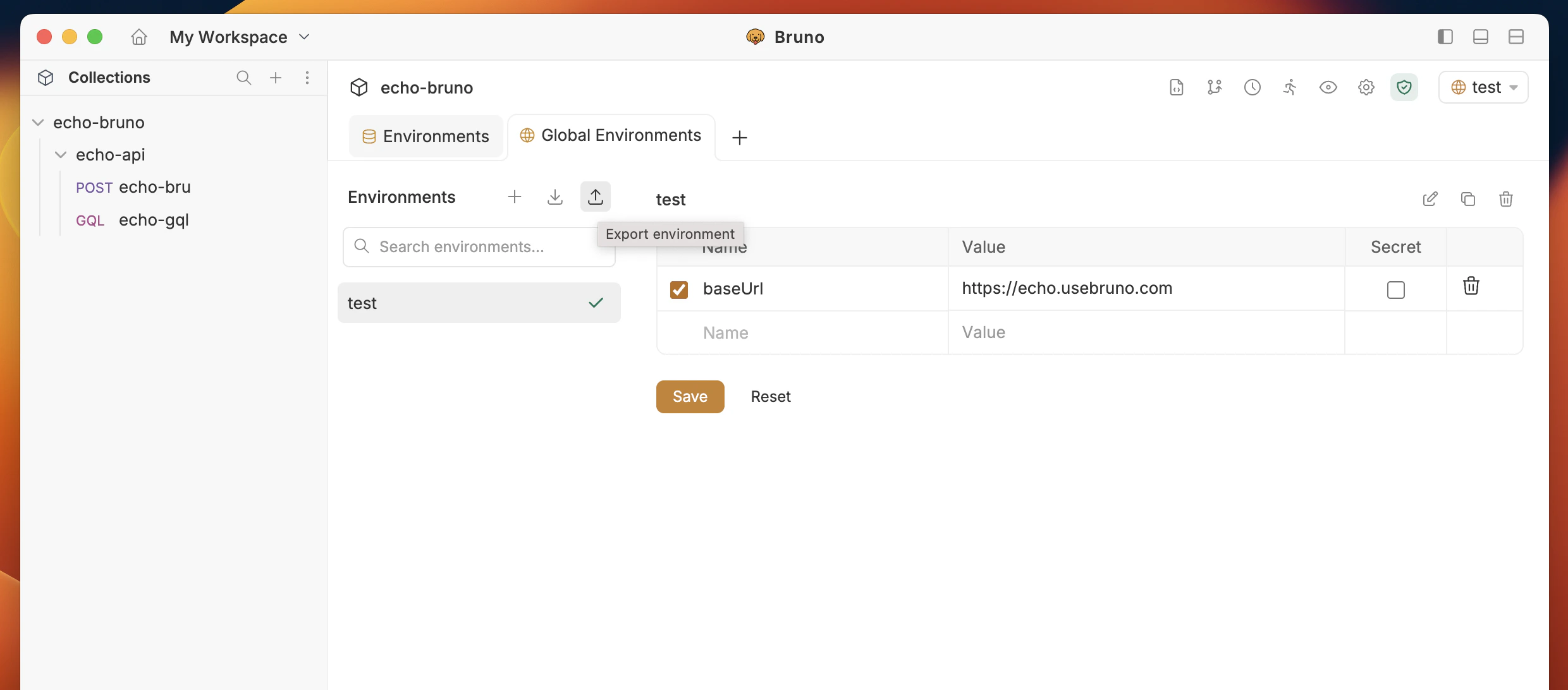
- If you have multiple environments, select which environments you want to export.
- Choose the location where you want to save the exported JSON file.
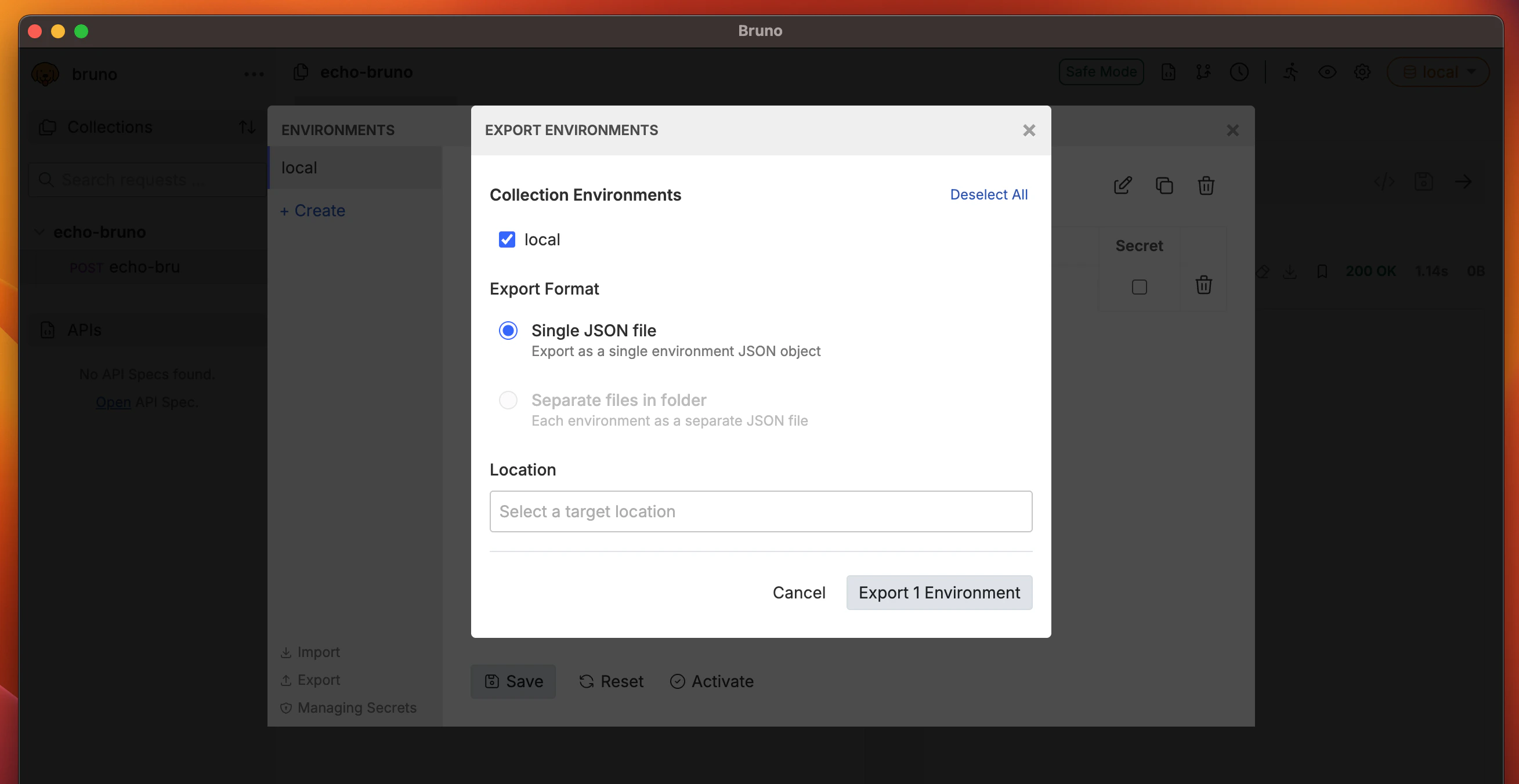
- The environment variables will be saved as a JSON file that can be shared or backed up.