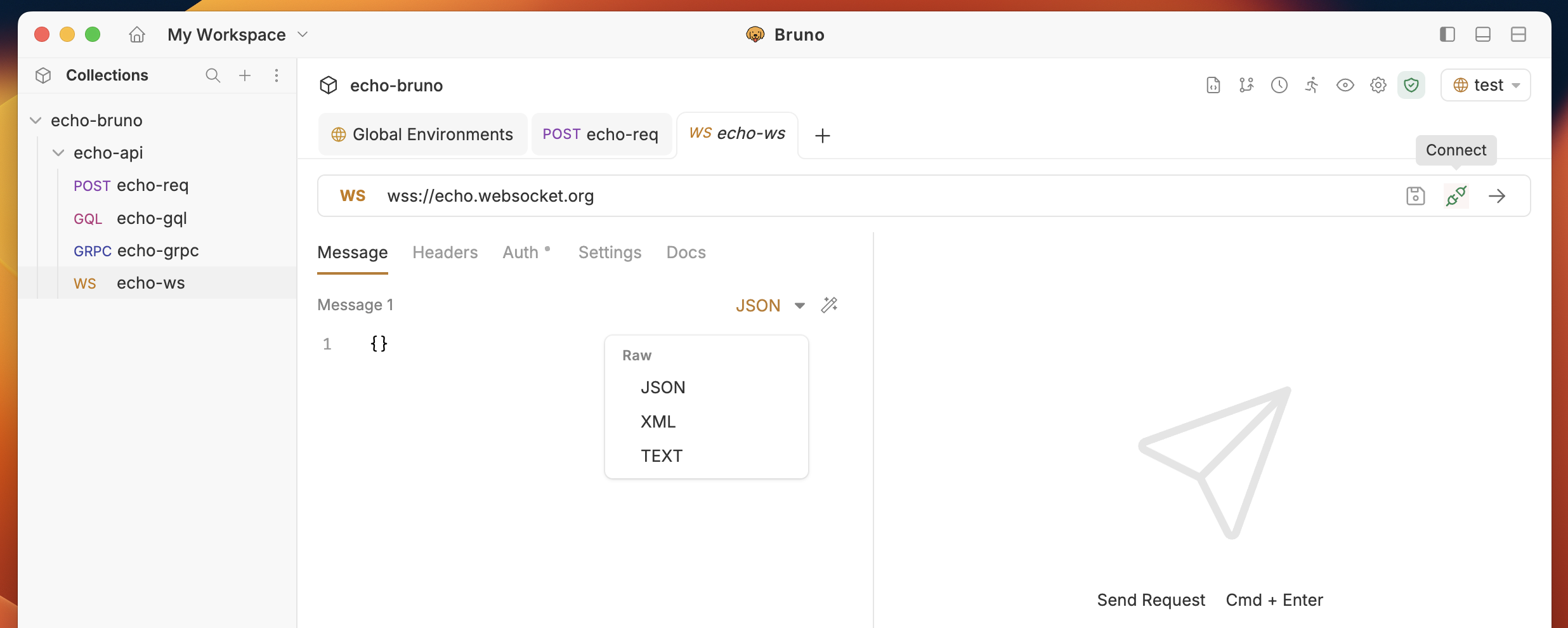
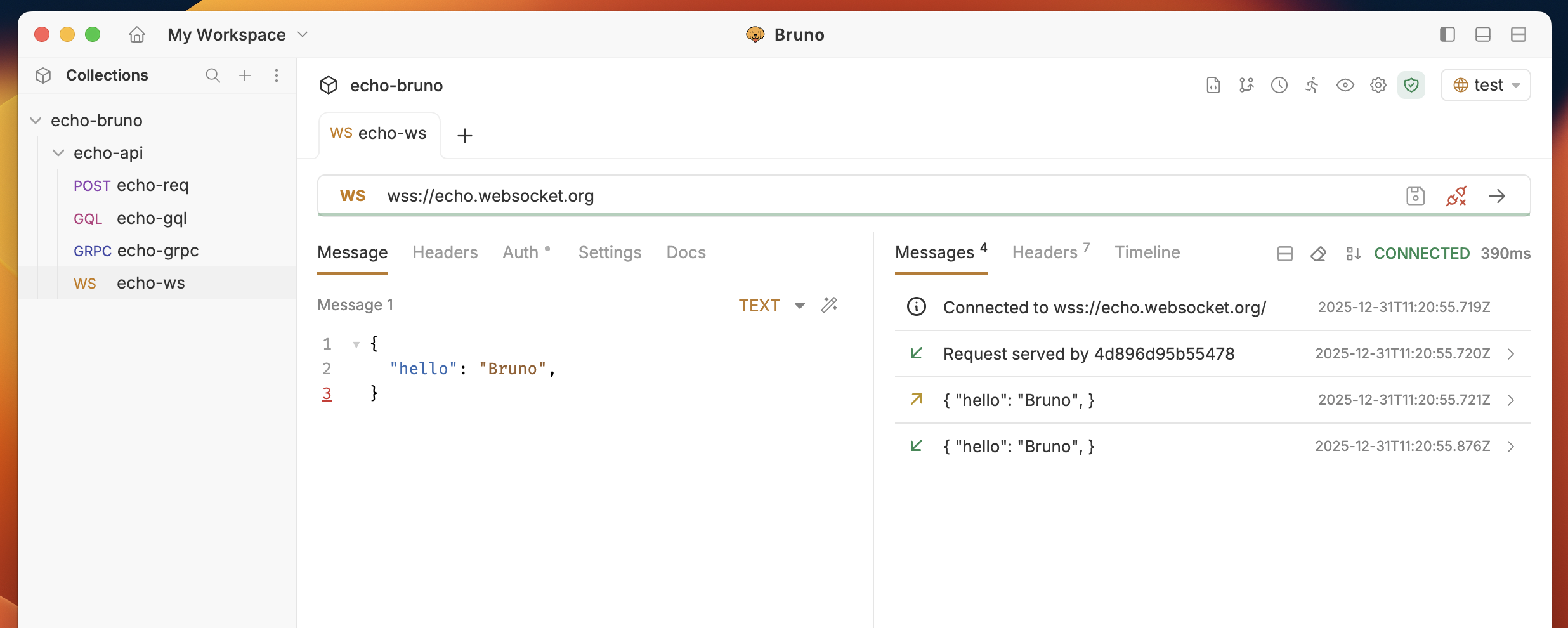
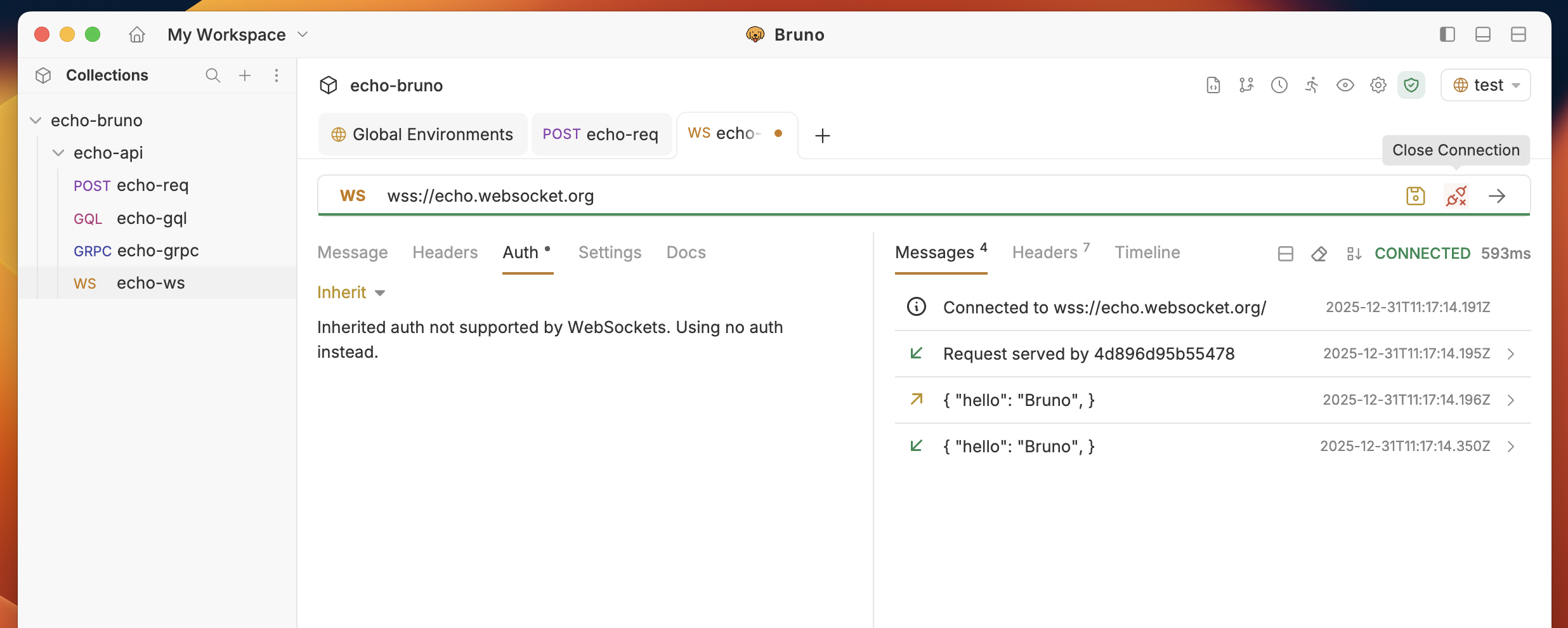
The WebSocket request interface consists of several key components:
Request Interface
Connection Status
Disconnected: Initial state, ready to connect
Connecting: Establishing connection to server
Connected: Successfully connected and ready to send messages
Disconnected: Connection lost or manually closed
Message Composition
Message Type: Choose between Text, JSON, XML — set per message
Message Editor: Compose your message with syntax highlighting
Send Button: Send that individual message to the active connection
Add Message: Add additional messages to the same request
Rename: Double-click a message label to rename it
Delete: Remove a message individually (at least one message must remain)
Message History
Sent Messages: All messages you’ve sent (marked with →)
Received Messages: All messages received from server (marked with ←)
Timestamps: When each message was sent/received
Message Sorting: Toggle between newest/oldest first
Connection Management
Establishing Connection
Click the “Connect” button to establish the WebSocket connection
Monitor connection status in the status indicator
View connection logs for detailed connection information
Multiple Messages
Multiple message support is available from v4.0.0 and higher.
Bruno lets you compose and save multiple messages inside a single WebSocket request. This is useful for testing sequences, simulating different payload shapes, or keeping a library of reusable messages alongside one connection.Working with multiple messages
Click Add Message to add a new message slot. Each message has its own format selector (Text, JSON, XML) and editor.
Click the Send button on a specific message to send only that message to the active connection.
Double-click a message label to rename it.
To remove a message, click the delete icon. The last remaining message cannot be deleted.
Variable interpolation works per message, so {{token}} and other variables are resolved individually when each message is sent.
Sending Messages
Compose your message in the message editor
Select message type (Text, JSON, XML)
Click Send button on the message you want to transmit
View sent message in the message history
Receiving Messages
Monitor the message history for incoming messages
View message details including timestamp and content
Use test scripts to validate received messages
Closing Connection
Click “Disconnect” to close the WebSocket connection
Connection status will update to “Disconnected”
Message history is preserved for review
File Format
Multiple messages are saved directly in your collection files so they are version-controllable and portable.
meta { name: web-socket type: ws seq: 1}ws { url: wss://echo.websocket.org}body:ws { message 1 [json] { {"name":"Bruno"} } message 2 [json] { {"msg":"The most loving API client by developers"} }}